
Download the DMG
Use the download link on this site. When the file finishes downloading, open the DMG from your Downloads folder.
Magic Broom help
This page walks you through installation, macOS permission prompts, and the main screens inside Magic Broom. Use it when you want to clean storage without guessing what the app is asking you to remove.
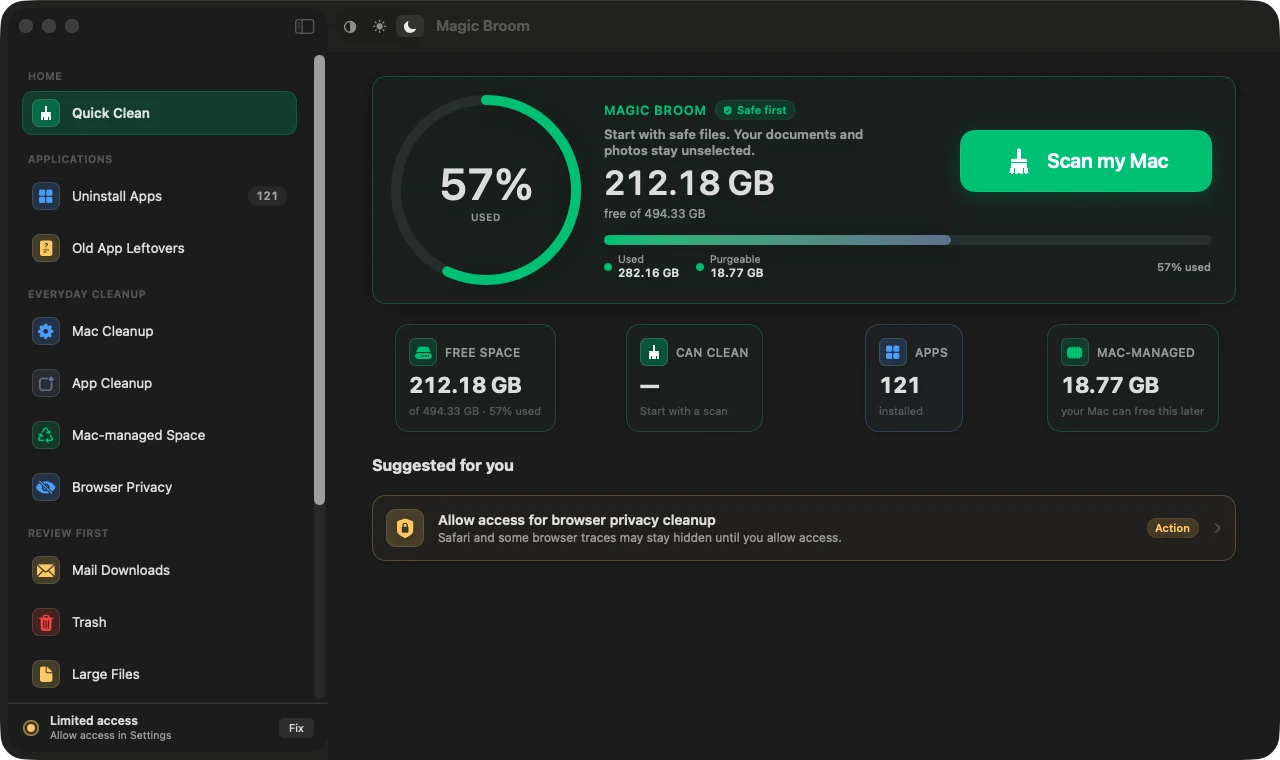
Install
The public release is a Mac app distributed as a DMG. Install it like a normal Mac app, then grant the permissions needed for a full scan.
Use the download link on this site. When the file finishes downloading, open the DMG from your Downloads folder.
Move the app into Applications before opening it. This keeps updates, permissions, and future launches predictable.
If macOS blocks the first launch, allow Magic Broom from Privacy & Security, then open it again.
Full Disk Access lets Magic Broom find app leftovers, protected caches, and storage locations macOS hides from normal apps.
macOS security
The current Magic Broom build may not be signed or notarized by Apple yet. Because of that, macOS can block the first launch even when the app came from the official website.
This is a macOS protection step. Only continue if you downloaded Magic Broom from this website and expected to install it.
On some macOS versions, Control-clicking the app and choosing Open can also show the confirmation button. If you still do not see an option to open the app, download the DMG again from the official website or contact support.
Full Disk Access
Magic Broom can run with limited access, but some protected locations will not be available. Full Disk Access helps it find app leftovers, protected caches, Trash contents, Mail Downloads, and other local cleanup targets.
App screens
Magic Broom is organized around common storage problems: a quick first pass, leftover app files, hidden macOS-managed storage, and review before removal.
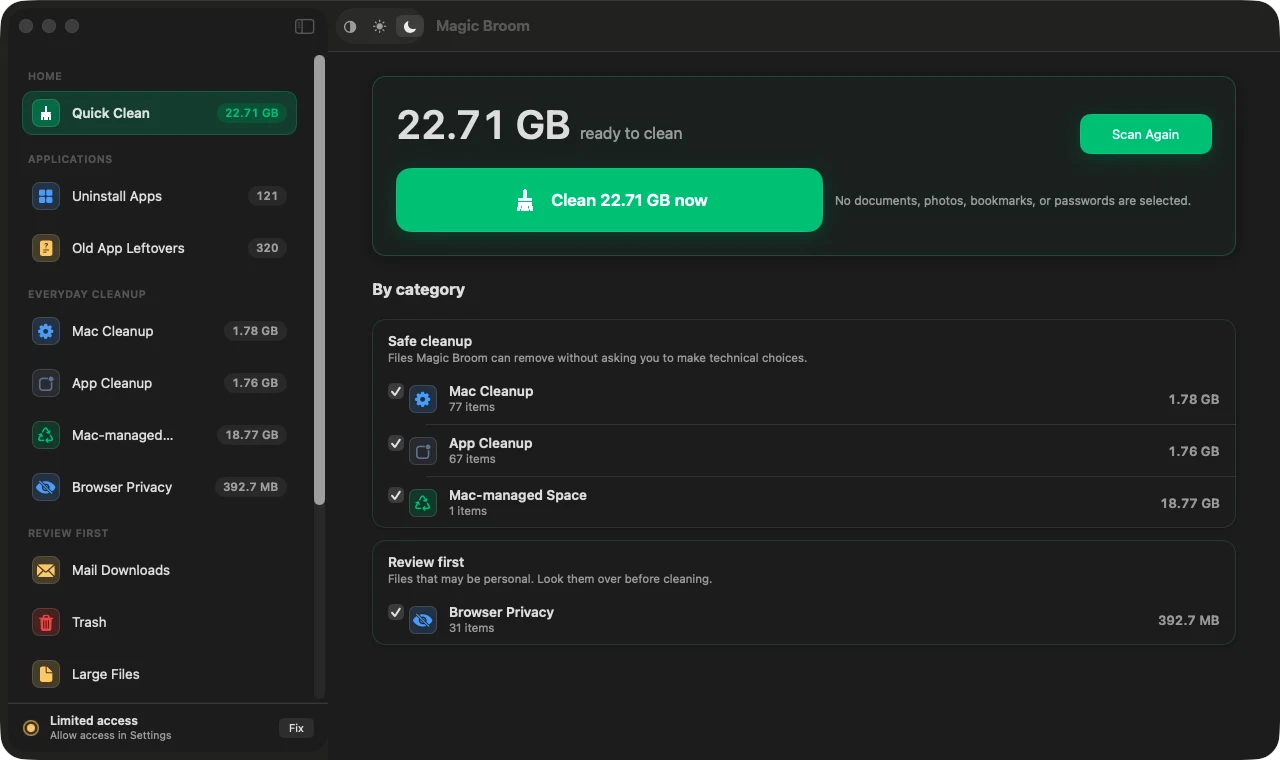
Start here when your Mac feels crowded and you want a safe first pass. Quick Clean focuses on reviewable clutter instead of personal files.
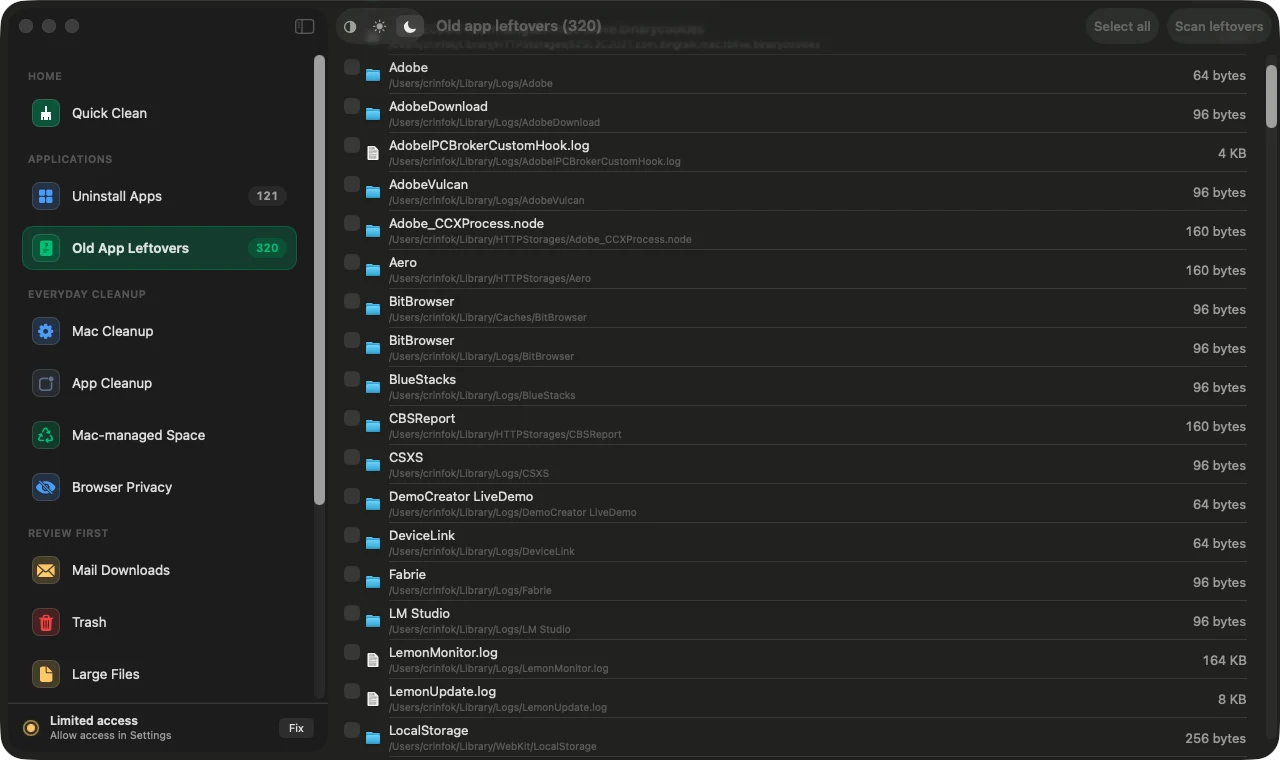
Use this when you deleted apps but storage did not come back. Magic Broom looks for support files, preferences, containers, logs, and caches left behind.
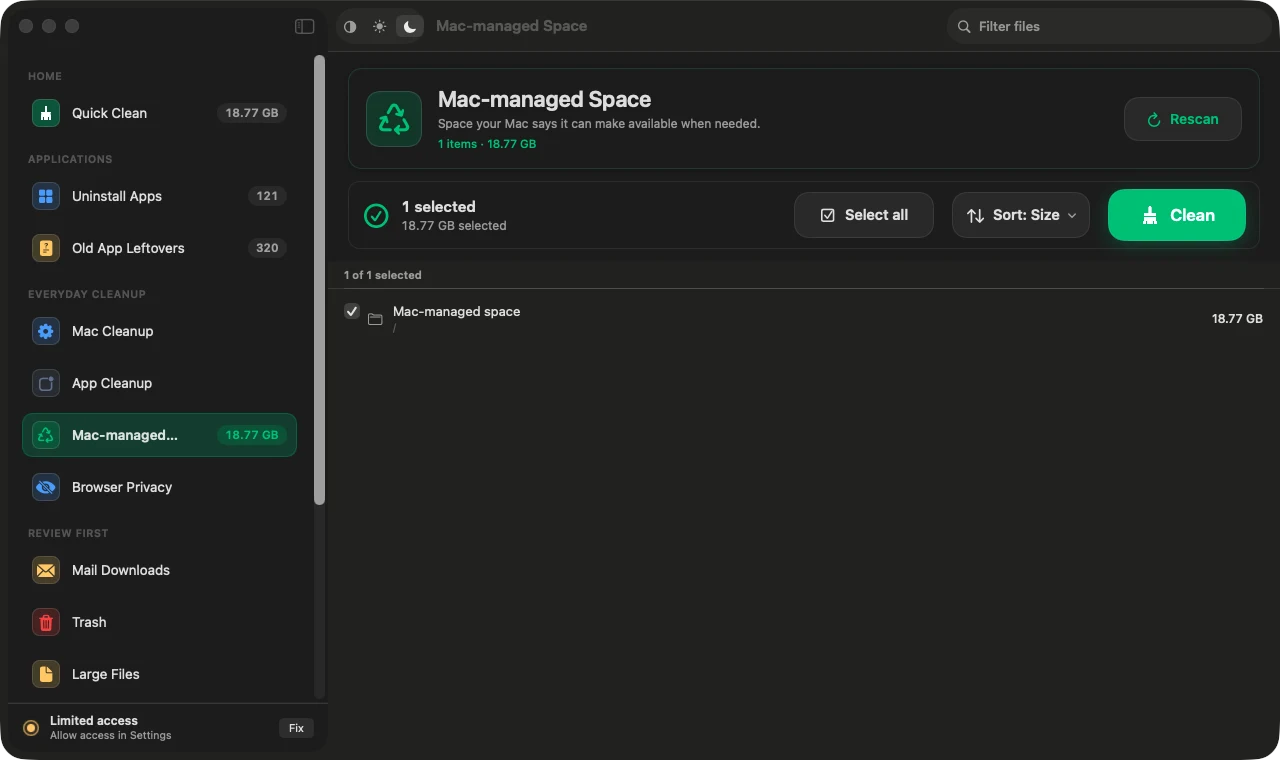
Use this when macOS reports storage that is hard to explain. It helps you understand purgeable and system-managed space before you decide what to clean.
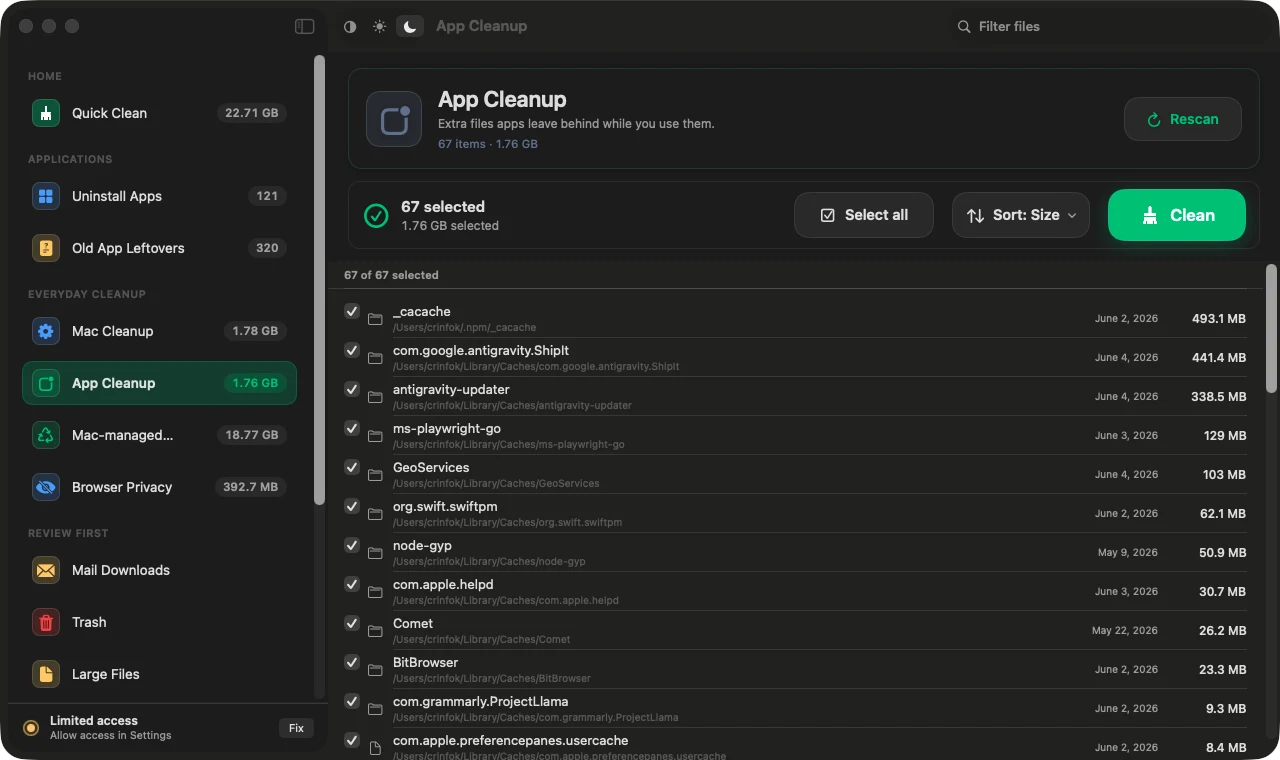
Magic Broom is built around review-first cleanup. The final confirmation screen helps you check the selected files before anything is removed.
Navigation
Use the sidebar as a map. Start with the category that describes the problem you are trying to solve.
Start with a broad, safe scan when you want Magic Broom to find common cleanup targets first.
Choose an app, review related files, then remove the app and its leftovers.
Find files left by apps that are no longer installed.
Review everyday Mac files that can usually be rebuilt when needed.
Find extra files apps leave behind while you use them, including caches and support files.
Review space macOS says it can reclaim when needed.
Clear browser history, downloads, and website traces from supported browsers.
Review old files saved from Mail before removing them.
Review files already moved to Trash before emptying them.
Find large files when you need to recover space quickly.
Review extra files from AI chat and writing apps before cleaning.
Review large files left by Apple's coding tools.
Review old downloads from coding tools such as package managers.
Review extra files from web development tools before cleaning.
Review large Docker files when local development storage grows.
FAQ
macOS blocks normal apps from reading many protected folders. Full Disk Access lets Magic Broom find app leftovers, protected caches, and storage locations needed for a full cleanup review.
Yes, but some scans and removals will be limited. You can grant Full Disk Access later from System Settings.
Try opening Magic Broom once, then open System Settings, go to Privacy & Security, and look for Open Anyway or Allow Anyway. Only continue if you downloaded Magic Broom from the official website.
No. Review the file paths first. If you do not recognize a file or category, skip it and clean only the items you understand.
Need more help?
Include your macOS version, Magic Broom version, what you were trying to clean, and a screenshot if it explains the issue.